Google Postmaster Tools: Fix Your Email Reputation
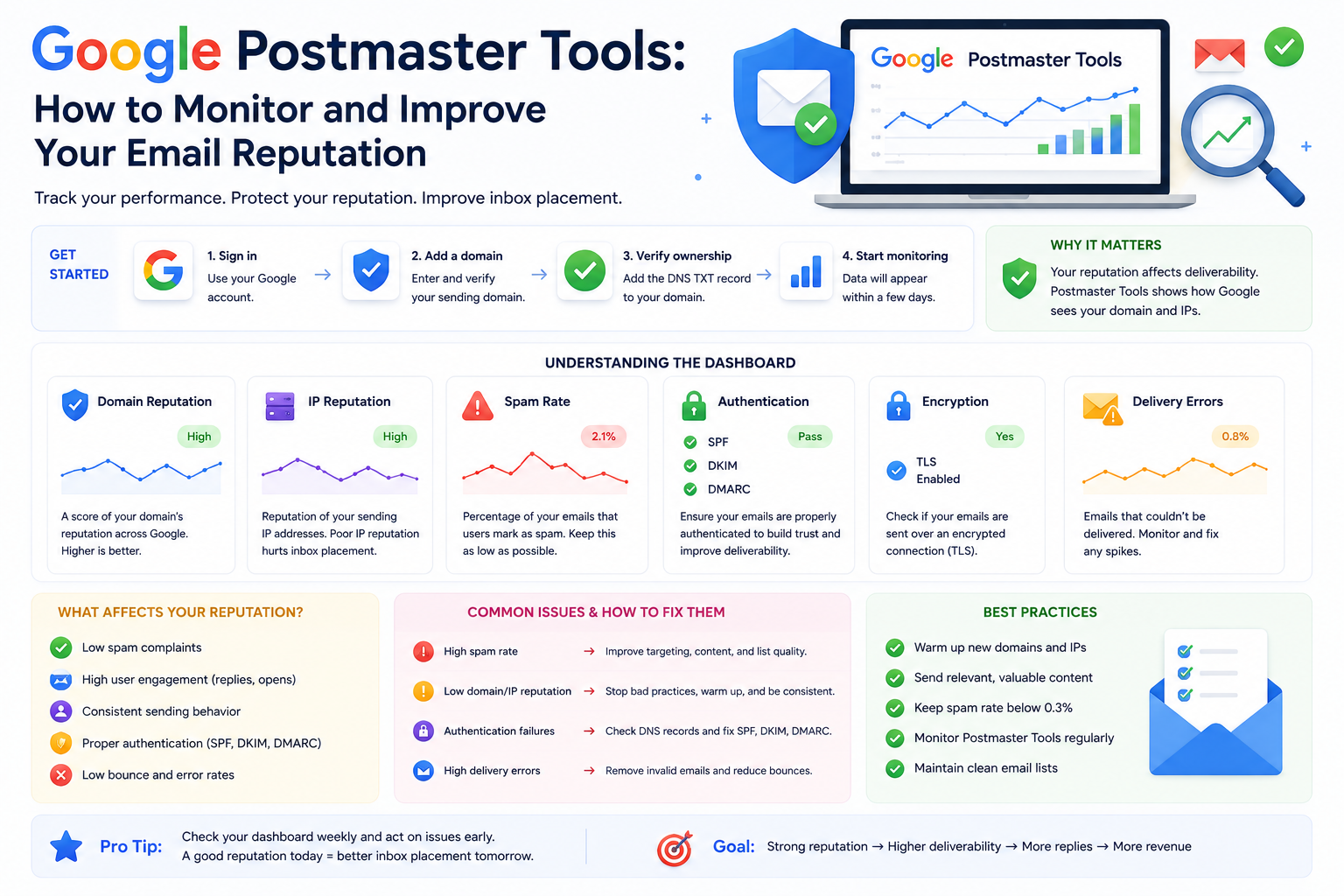
Google Postmaster Tools: Monitor and Fix Your Email Reputation
Your reply rate didn't drop because your copy got worse. It dropped because Gmail stopped putting your emails in the inbox. Google Postmaster Tools (GPT) is the only way to see exactly what Gmail sees when it evaluates your domain — and most cold email senders never open it.
Why SDRs Need to Care About Gmail Reputation Right Now
Gmail controls an enormous share of business inboxes. If your domain reputation is declining there, a significant portion of your campaign volume is quietly disappearing into spam folders — and your open and reply rates are just the lagging indicator. By the time you notice performance drop, the damage is already compounding.
The problem is that most outreach metrics — opens, clicks, replies — are downstream of inbox placement, which is downstream of Gmail's reputation score for your domain. You can rewrite your subject lines all day and get zero lift if Gmail has already decided your domain belongs in spam.
GPT gives you direct visibility into the signals Gmail actually uses to filter your emails. Domain reputation, spam rate, authentication pass rate — these aren't estimates or proxies. They're the provider-side data. No other tool shows you this.
What Google Postmaster Tools Actually Shows You (And What It Doesn't)
GPT has six core dashboards: domain reputation, IP reputation, spam rate, authentication, delivery errors, and encryption. Each one surfaces a different layer of how Gmail evaluates your sending behavior.
A few things to understand before you start pulling conclusions. First, data is domain-specific — you must verify each sending domain separately inside GPT. If you're running five secondary domains for outbound, that's five separate GPT properties to set up. Second, [unverified] there's a minimum Gmail recipient volume threshold before GPT begins populating data — if you're sending to mostly Microsoft 365 inboxes, your dashboards may stay empty even if campaigns are running.
The most important thing GPT doesn't show you: individual campaign performance. GPT reflects provider-side signals aggregated across your domain, not send-by-send data. You need to run it alongside your sending platform's analytics to correlate what you see in GPT with specific campaigns or time windows.
How to Read the Domain Reputation Dashboard Without Guessing
Gmail assigns your domain one of four reputation tiers: High, Medium, Low, or Bad. For cold outreach to Gmail recipients, High is the only tier that gives you consistent inbox placement. Once you drop below that, some percentage of your emails are already hitting spam — you just don't know which ones.
| Reputation Tier | What It Means for Cold Email |
|---|---|
| High | Strong inbox placement — keep doing what you're doing |
| Medium | Early warning — some emails hitting spam, act now |
| Low | Significant filtering underway — reduce volume immediately |
| Bad | High risk of near-complete spam placement |
A drop from High to Medium isn't a crisis, but it's not something to monitor passively either. Treat it as a five-alarm signal that something changed — volume, list quality, complaint rate — and investigate that same day. Reputation is built on historical behavior, so recovery doesn't happen overnight. [unverified] Expect days to weeks of disciplined sending before you see a tier improvement, not hours.
The Spam Rate Threshold That Should Make You Stop a Campaign
Google recommends keeping spam complaints below 0.10%. Treat 0.08% as your personal ceiling — that buffer gives you room to course-correct before you're in dangerous territory.
Spam rate in GPT reflects Gmail users actually clicking "Report Spam" on your emails. This is the strongest negative signal Gmail tracks. It carries far more weight than low open rates or high bounce rates. Even a single campaign that spikes above 0.30% can leave a lasting mark on your domain reputation that takes weeks to recover from.
The tactical rule here is simple: if spam rate climbs, pause the campaign before you investigate. Don't let it compound while you're pulling reports and scheduling calls. Stop the bleeding first, then diagnose. Common causes include poor audience targeting, misleading subject lines, or sending to cold lists that haven't been verified recently.
Authentication Check: The One Dashboard You Should Never Ignore
The authentication dashboard in GPT shows what percentage of your emails are passing SPF, DKIM, and DMARC. That number should be at or near 100%. Always.
Anything below 95% is a red flag. Below 90% is an active deliverability problem that will undermine everything else you do. Authentication failures reduce Gmail's trust in your domain independent of your content, your engagement rates, or how well-written your subject lines are. Gmail uses authentication to verify that your emails are actually coming from who they claim to be — failures there are a foundational trust issue, not a cosmetic one.
The fix priority is always authentication first. If you're seeing low pass rates, check that your SPF record includes all your sending providers, that DKIM signing is enabled and the public key is correctly published in DNS, and that your DMARC record is aligned. Don't adjust copy, volume, or sequences until authentication is at 100%. You're optimizing on top of a broken foundation otherwise.
Three Actions to Take When Your Reputation Drops
When GPT shows a reputation decline, the instinct is often to test different copy or switch up sequences. That's the wrong move. Here's what actually helps:
Step 1: Reduce sending volume immediately. Scaling into a reputation dip accelerates the damage. Drop volume back to a level that your current reputation can sustain — think 30–50% of your normal daily sends — and hold it there until metrics stabilize.
Step 2: Audit your prospect list. High bounce rates and catch-all addresses are two of the fastest ways to erode domain reputation. Pull your recent lists, re-verify them against an email verification tool, remove hard bounces immediately, and separate any catch-all addresses into a lower-volume campaign before your next send.
Step 3: Cross-reference your GPT spam rate timeline with your campaign history. GPT's spam rate chart shows trends over time. Overlay that with when specific campaigns ran. If the spike lines up with a particular list source, sequence, or send day, you've found your culprit.
After you've made corrections, monitor GPT daily for one to two weeks before resuming normal volume. Reputation recovery is gradual — you're looking for the trend to stabilize and start improving before you push volume back up.
Next Steps
Use this checklist after reading your GPT data for the first time:
- Verify every active sending domain in Google Postmaster Tools
- Check domain reputation tier — flag anything below High for immediate review
- Confirm spam rate is below 0.08% across your recent sending window
- Verify that SPF, DKIM, and DMARC are all showing 100% pass rate
- Review delivery errors dashboard for any provider-side rejections
- If any metric is off, reduce volume before making other changes
- Set a recurring calendar reminder to check GPT at least twice per week
XemailCampaign's built-in reputation monitoring surfaces the same signals you'd track manually in GPT — so you can catch issues between your weekly check-ins without living in the dashboard. If you're not monitoring yet, start your free trial and connect your domains today.